Our MT5 Trader
All about our trading app
User Guides
User FAQs
How do I log into my account?
Where can I find my account number?
You can find your account number by logging into the Onyx Portal. Once you are logged in the account number is dispayed in the top right of your home page. You also should have received an email with your account number upon signing up. If you are still having issues, please reach out at trading@onyxmarkets.co.uk or 0203 097 5000.
How do I fund my account?
You can fund your account using a bank transfer or open banking. Please ensure that any payments made are from an account in your name. We do not accept third-party payments or transfers. We do also not accept cash, cheques or crypto payments.
What is the Onyx Server called?
The Onyx Server is called OnyxCapitalAdvisory-Server
How do I place a trade?
As of now, we operate on a phone dealing-only basis with all Onyx Products (oil products). All FX products are free for digital trading via your MT5 platform.
How do I reset my password?
Please contact the client management team for assistance on a password reset.
Technical FAQs
Do you have charts on your platform?
Yes – Our MetaTrader 5 platform has a chart function which allows you to have multiple charts on screen, using various time frames, indicators, strategies, drawings and much more.
How do I login on mobile?
You will first need to download the MetaTrader 5 app on from the App Store or Google Play store. Once you have signed up you will receive your log in details. You can then select the option to ‘Log In’ via the app using your new log in details.
How can I find my MT5 login details?
When you sign up for an account, you will receive your log in details. With MetaTrader 5 you will be given a numerical log in ID and a password which you can change once you have logged in.
Where can I get help on how to us your platform?
The platform itself has a functionality course which shows your how to use the various tools available in the platform. There is also a MetaTrader 5 guide which can be found here. Please reach out to our Account Managers via this number: 0203 097 5000.
What systems are supported by MetaTrader 5?
MetaTrader5 available on Windows, Mac, Web, iOS and Android devices.
Are there system requirements to install MT5?
For the downloaded terminal windows 10 or later is strongly recommended, any Apple MacOS will also run the platform. if you don’t have either then please use the web terminal.
How do you use FX blue?
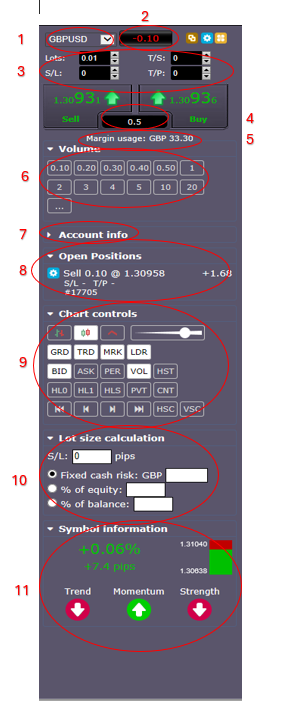
 IMPORTANT: In order to trade using the terminal you must have ‘Algo Trading’ enabled.
1. Easily switch between markets, without the need for market watch
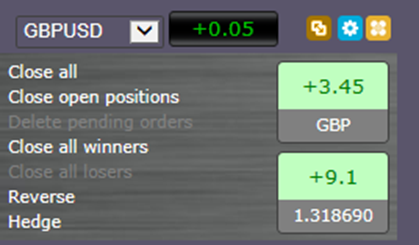
2. Close all positions or all winners, reverse the direction of the trade (if you think the market is going to rebound) or hedge your position with on click (great for economic data releases if you want to keep your position but ride out the volatility)
IMPORTANT: In order to trade using the terminal you must have ‘Algo Trading’ enabled.
1. Easily switch between markets, without the need for market watch
2. Close all positions or all winners, reverse the direction of the trade (if you think the market is going to rebound) or hedge your position with on click (great for economic data releases if you want to keep your position but ride out the volatility)
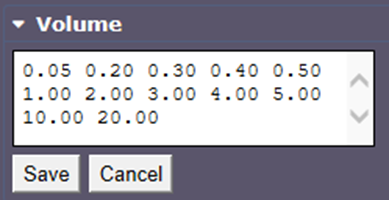
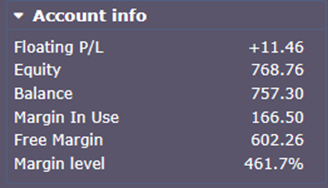
- GRD – Show Gridlines
- TRD – Show trade entry line
- MRK – Show order markers
- LDR – Show order ladder (for easy order inputs)
- Bid – Show bidlines
- ASK – Show askline
- PER – Show dotted line for where each day ends
- VOL – Show volume
- HST – Historic Trades
- HL0 – High low of the day
- HL1 – High low of yesterday
- HLS – Recent High/Low points of the most recent swing
- PVT – Show Pivot Points
- CNT – Candle Countdown (showing how long until the next candle starts)
- 10. Lot size Calculator – calculate the lot size from your risk tolerance.
- 11. Information about the symbol, daily range and the trend/momentum/strength on the current time frame.